Shapes Pop-Up Menu
A pop-up menu is available that lets you export shapes in the .ORSObject file format, execute macros, create and extract structured grids, as well as modify regions of interest.
 Items Available for a Single Selection
The following items are available when you select a single shape in the Data Properties and Settings panel.
Align*
Centroid With… Lets you automatically align the centroid of the selected shape with the centroid of another object. Applicable objects include volumetric image data, regions of interest, multi-ROIs, and meshes. These reference objects can be selected in the Choose the Object to Align With dialog.
Export
As ORSObject… Saves the selected shape in the Dragonfly Object file (*.ORSObject extension) format (see Exporting Objects).
Extract a One Slice Dataset from Visual Plane***
Extracts a 2D image that intersects with the oblique or double-oblique angle of a selected visual plane.
Execute Macro
Provides a shortcut for selecting macros that can be executed for the selected shape.
Manage User Data
Opens the User Data dialog, in which you can view detailed object descriptions, as well as add fields to further describe the selected shape (see Managing User Data).
Take Box Shape from Feret Of**
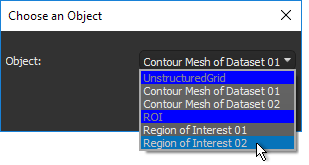
Reduces a box to the smallest encasing rectangle based on the maximum Feret diameter and minimum orthogonal Feret diameter of the labeled voxels of the selected region of interest or unstructured grid, such as a mesh. You can select the required object in the Choose an Object dialog, as shown below.
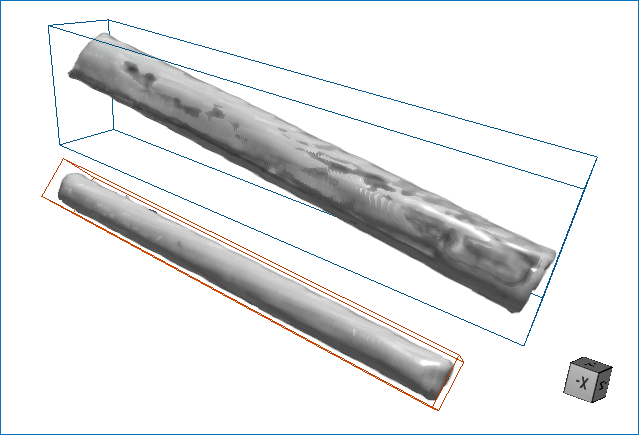
In the illustration below, two box were resized to the Feret and minimal box shapes of selected regions of interest.
Resized boxes
Take Minimal Box Shape Of**
Reduces a box to the minimal encasing rectangle based on the labeled voxels of a selected region of interest or on the bounding box of a mesh.
You can select the required object in the Choose an Object dialog.
Add to ROI*
Labels all voxels contained in the sub volume defined by the current shape and adds them to the selected region of interest.
You can also select New ROI in the Choose an ROI dialog and then choose a name, highlight color, and geometry in the New Region of Interest dialog.
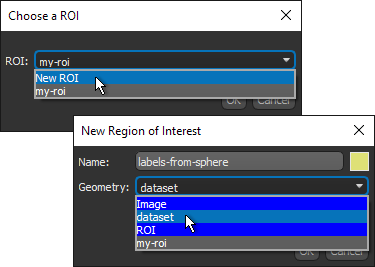
Note In either case, only intersecting voxels will be added to the region of interest.
Remove from Structured Grid*
Removes all labeled voxels from the region of interest or multi-ROI that intersect with the voxels contained in the sub volume defined by the current shape.
Create a Structured Grid**
Lets you create structured grid, which can be an image, region of interest, or multi-ROI, from the volume defined by a box. The inputs can be selected in the appropriate dialog — Create an Image, Create an ROI, or Create a Multi-ROI.
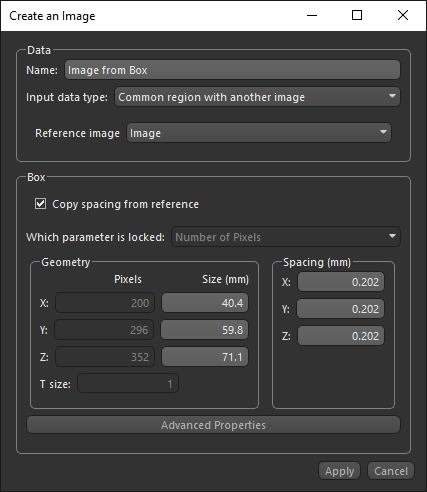
You can select a geometry for all structured grid types, as well as advanced properties that include the object's position in space and its orientation.
For images, you can also select an input data type. Input data types can be the initial value for a uniform image, the common region with the selected reference image, or noise.
Extract Structured Grid*
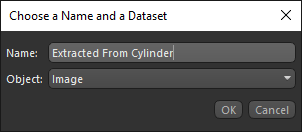
Lets you extract an image from the volume defined by a box, capsule, cylinder, or sphere shape and the intersecting data values of a selected object. You can choose a name and the reference image in the Choose a Name and a Dataset dialog, shown below.
Extract Projection of Structured Grid****
Lets you extract projections of the surface of a cylinder or sphere to a flat image (see Extracting Non‐Planar Views from Spheres and Cylinders).
Grow to Contain 3D Object**
Automatically expands a box to fully enclose the bounding box of a selected 3D object.
Wrap 3D Object**
Automatically resizes and reorients a box to tightly wrap the bounding box of a selected 3D object.
You can select the 3D object — such as a mesh, dataset, region of interest, or multi-ROI — that you want to contain or wrap to in the Choose a 3D Object dialog.
Mask ROI
Removes all labeled voxels from the selected region of interest that are outside of the shape. For example, when you need to limit computations to a subset of the data (see Creating Mask ROIs).
Edit Visual Box**
Lets you modify the geometry of a Box shape or create a box with a specific granularity. For example, when creating a box for computing vector fields describing anisotropy for a bone analysis.
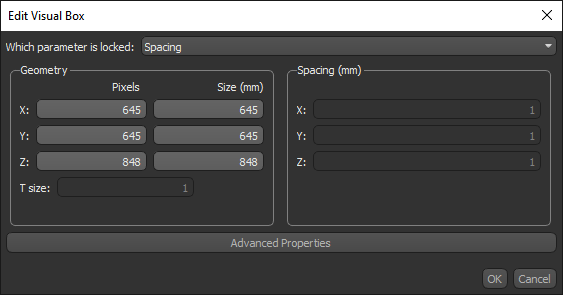
When you edit a box, you can choose which parameter is locked.
** Available for boxes only.
*** Available for planes only.
**** Available for cylinders and spheres only.
Items Available for Multiple Selections
The following items are available whenever you select two or more shapes in the Data Properties and Settings panel.
Export
As Multiple ORSObject… Exports the selected items in the Dragonfly Object file (*.ORSObject extension) format to a selected folder as multiple files (see Exporting Objects). If the selected items share the same name, their file names will be appended with a sequential number.
As ORSObject… Exports the selected items the Dragonfly Object file (*.ORSObject extension) format to a selected folder (see Exporting Objects).
Execute Macro
Provides a shortcut for selecting macros that can be executed for the number of items selected.
Add to ROI*
Labels all voxels contained in the sub volume defined by the current shapes and adds them to a selected region of interest. You should note that only intersecting voxels will be added to the region of interest
Remove from ROI or Multi-ROI*
Removes all labeled voxels from the region of interest or multi-ROI that intersect with the voxels contained in the subvolume defined by the current shapes.
Extract Structured Grid**
Extracts a dataset (structured grid) from the sub volumes defined by the box shapes and the intersecting data values of a selected object.
** Available for boxes only.